Figma Variables — Fixing Skipped Tokens (Border Radius)
Case: Border-radius tokens defined in TS as composed values (e.g., 0 2 0 2) don’t export as a single variable.
We’ll create number variables directly in Figma, bind them to the Team component, and (optionally) support brand/mode variants.
Goal: Rebuild corner radius control inside Figma using Number variables (one for all corners, or one per corner) so the Team component adapts across brands/modes without TS changes.
Context: Composed border-radius tokens with multiple corner values are skipped on export. In Figma, we’ll create Number variables for radius and bind them to the Team component’s corners.
Step‑by‑step
1. Create the radius variables in Figma
- Open Variables panel.
- Decide your control model:
- Uniform radius (one var for all corners), or
- Independent corners (four vars: TL, TR, BR, BL).
- Click + Create variable:
- Uniform option:
team/serving-indicator/border-radius→ Type: Number → set value (e.g.,2)
- Independent option (right + left sides):
team/serving-indicator/borderRadius/left/topleft→ Number →0team/serving-indicator/borderRadius/left/topRight→ Number →2team/serving-indicator/borderRadius/left/bottomRight→ Number →2team/serving-indicator/borderRadius/rleft/bottomLeft→ Number →0
team/serving-indicator/borderRadius/right/topleft→ Number →2team/serving-indicator/borderRadius/right/topRight→ Number →0team/serving-indicator/borderRadius/right/bottomRight→ Number →0team/serving-indicator/borderRadius/right/bottomLeft→ Number →2
- Uniform option:
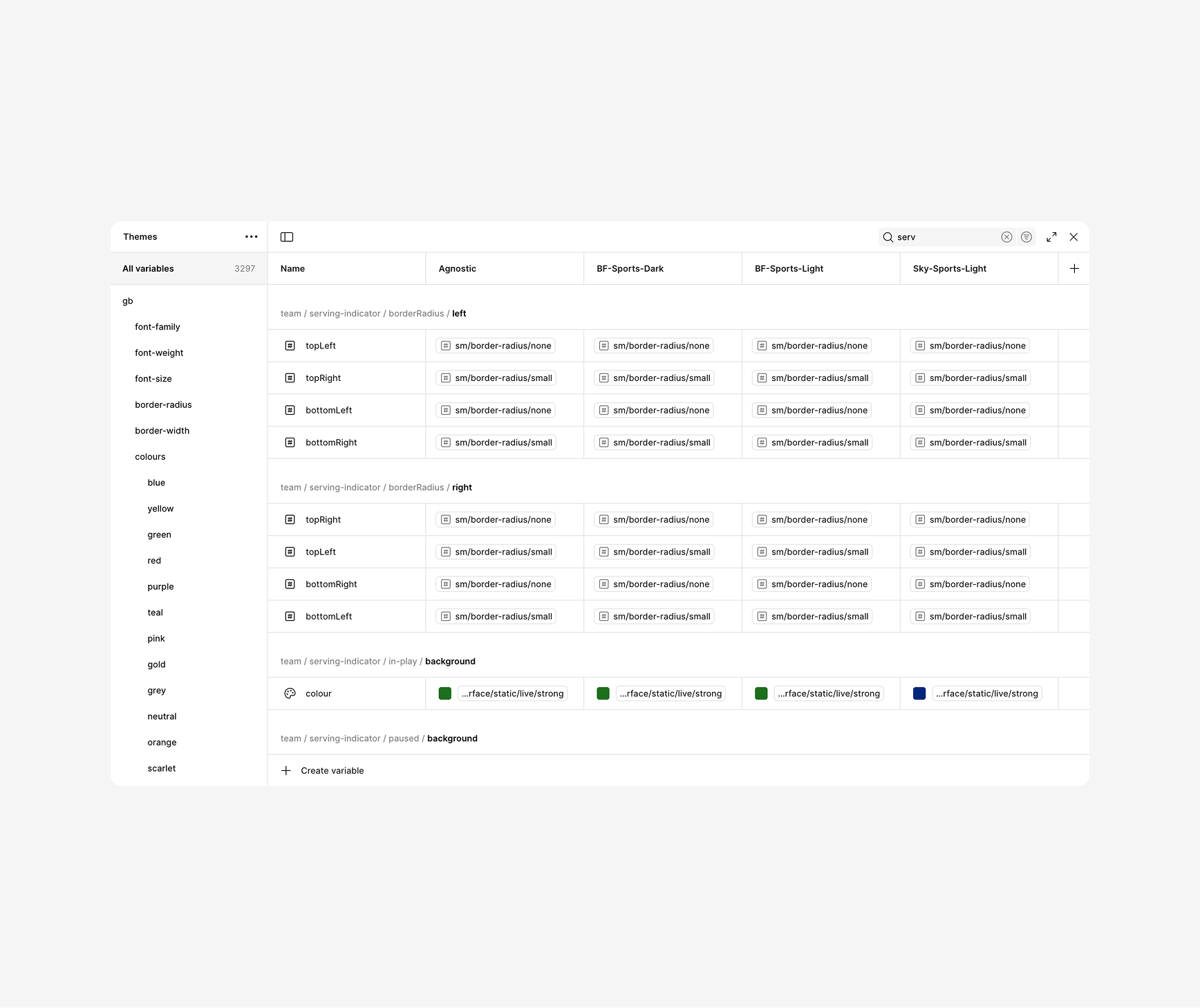
Use a uniform variable if most corners match. Use four variables if the component design is asymmetric.
2. Apply / Bind variables on the Team component
- Select the Team component’s main shape/container.
- In the right sidebar Corner radius field:
- For uniform: click the variable icon and choose
{team/serving-indicator/border-radius}.
- For uniform: click the variable icon and choose
- For independent corners:
- Click Independent corners (the 4-corner icon) to unlock per-corner fields.
- Bind each field (e.g. left side):
- TL →
{team/serving-indicator/borderRadius/left/topleft} - TR →
{team/serving-indicator/borderRadius/left/topRight} - BR →
{team/serving-indicator/borderRadius/left/bottomRight} - BL →
{team/serving-indicator/borderRadius/rleft/bottomLeft}
- TL →
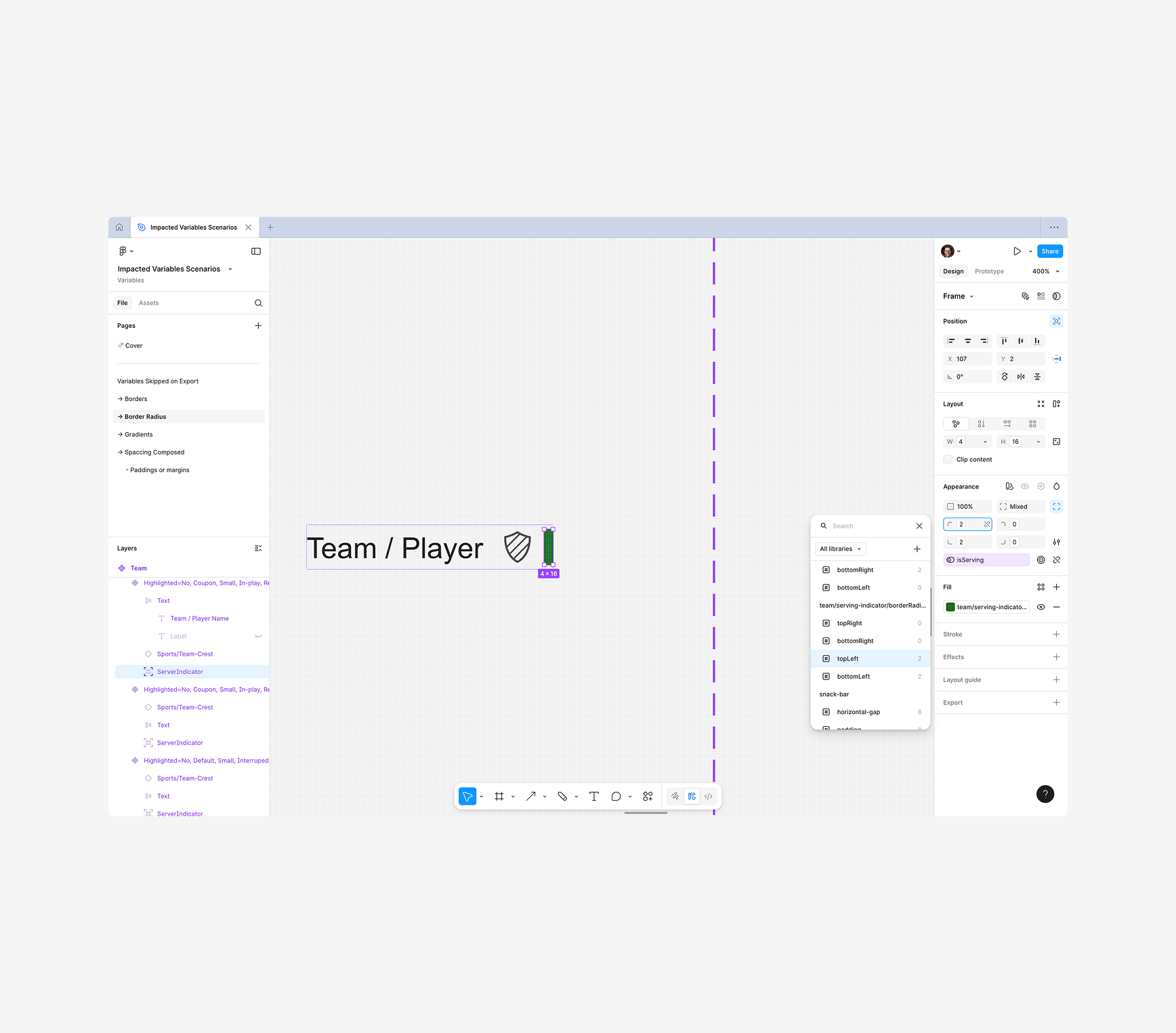
Keep the variable names visible in the hover tooltip to show the bindings during the recording.
3. Test brand & mode switching
- Open Variables panel
- Watch the Team component corners update automatically.
Because these are number variables, you can drive uniform or per-corner radii and scale them by mode or brand.
Here is the full flow to resolve the issue with skipped / composed tokens when exported from TS to Figma Variables.
4. Publish & PR
- Don`t forget to always publish the updated Variables library.
- Also publish the updated Component library.
- If you are already working in a branch, Open a PR with all the token changes and the new exported variables
When border-radius tokens are skipped on export, create Number variables directly in Figma — one for all corners or one per corner — and bind them to the Team component. Switch modes or brands to prove it scales without touching Tokens Studio.