Figma Variables — Fixing Skipped Tokens (Gradients)
Case: Gradient tokens are skipped on export. We’ll rebuild the gradient directly in Figma using colour variables for each stop, then bind the gradient as a Fill Style on the component.
Goal: Recreate a gradient in Figma using variable-linked colour stops so it responds to brand and mode (light/dark) without touching TS.
Context: Gradients are composite tokens with multiple colour stops and positions, so they’re skipped on export. In Figma, we’ll recreate the gradient by linking each colour stop to a colour variable, then save it as a Fill Style and apply it to Bottom Bar component.
Step‑by‑step
1. Create the colour variables for the gradient stops
- Open Variables panel in Figma (Right sidebar → Local variables).
- Click + Create variable for each stop you need:
- Example for a 3-stop gradient:
bottom-bar/background/gradient/startbottom-bar/background/gradient/middlebottom-bar/background/gradient/end
- Example for a 3-stop gradient:
- Set Type = colour for all variables.
- Enter initial values (e.g., start =
{gb.colours.neutral.10}, middle =#F6F6F6, end ={gb.colours.neutral.0})
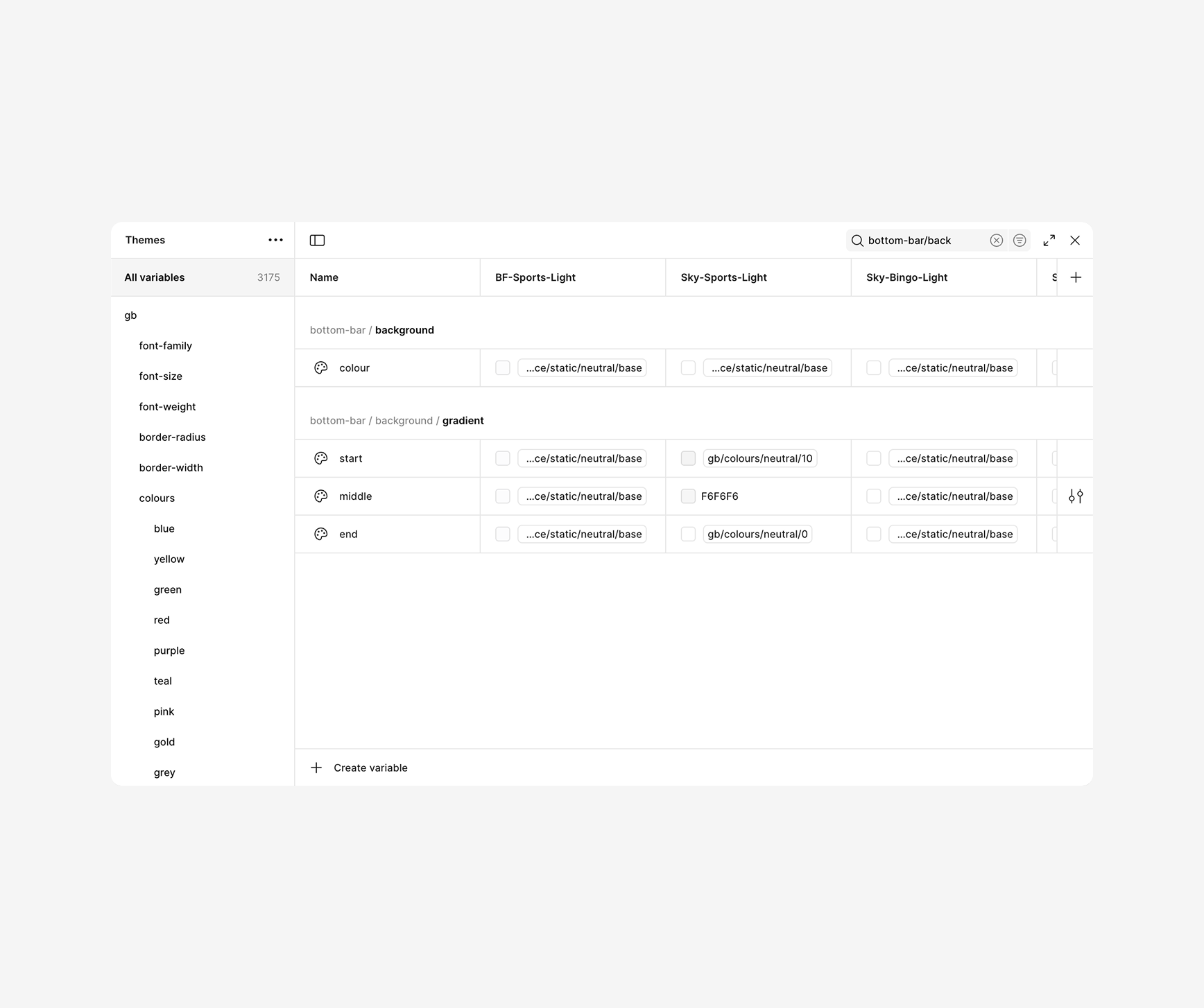
Gradients can’t be variables themselves, but each stop colour can. That’s the trick.
2. Build the gradient as a Fill Style (and link the stops)
- Draw a temporary rectangle (or select the Bottom Bar container if you want to preview live).
- In Fill, choose Linear Gradient (or Radial/Angular as needed).
- Click each gradient stop and link its colour to the variables you created:
- Stop 1 →
{bottom-bar/background/gradient/start} - Stop 2 →
{bottom-bar/background/gradient/middle} - Stop 3 →
{bottom-bar/background/gradient/end}
- Stop 1 →
- Adjust angle and stop positions visually. - (Note) Angle and positions are not variable-bindable in Figma; only the stop colours are.
5.Turn this fill into a reusable Style: - Click the four dots next to Fill → Create style - Name it clearly, e.g.:
bottom-bar.background.colour
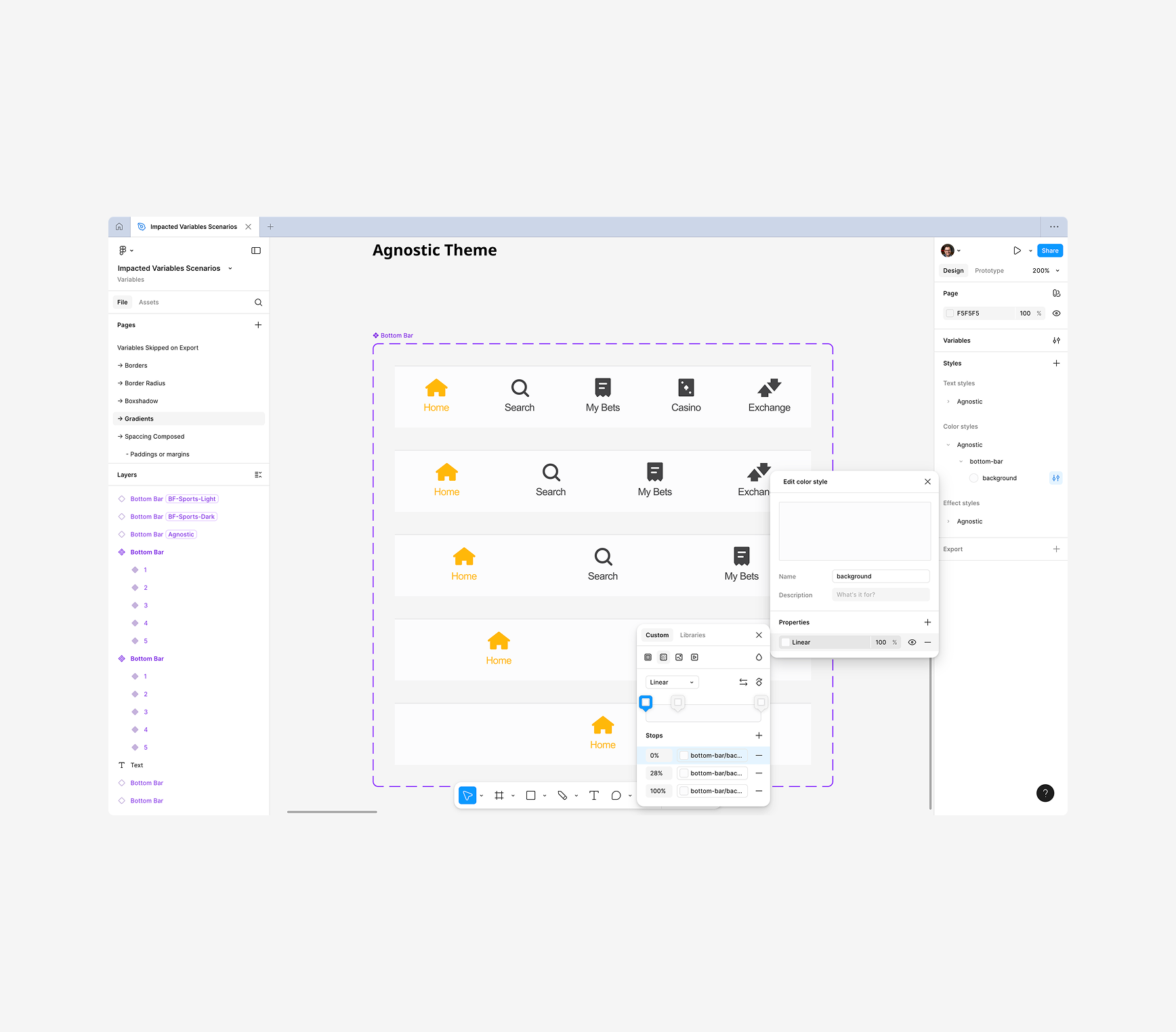
We’re storing the shape of the gradient (angle & positions) in the Style, and the colours in Variables.
3. Apply to the component
- Select your Bottom Bar component’s background layer (or container).
- In Fill, select your new style:
Agnostic/bottom-bar/background. - Verify the fills update. If the component has nested parts, apply the Style on the correct layer.
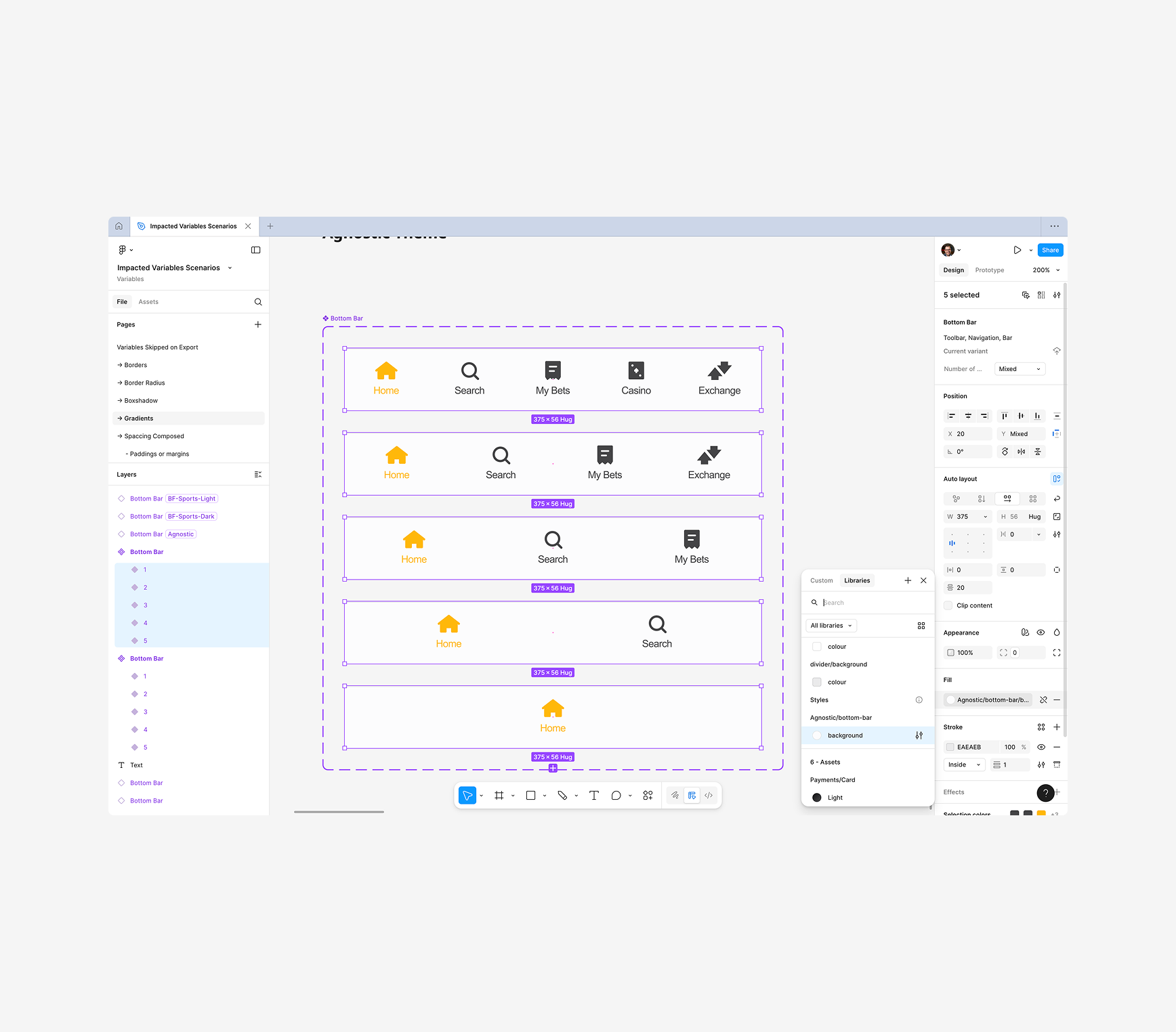
4. Test brand & mode switching
- Open Variables panel.
- Watch the gradient update as the underlying stop colour variables change.
- If you use a Density or Theme mode set, you can preview those too.
Optional advanced:
- Add alpha variations by setting stop colours with opacity (e.g.,
rgbain the variable value). - If you need a 3- or 4-stop gradient, just create more variables:
bottom-bar/background/gradient/stop1,stop2,stop3,stop4, and link each stop.
5. Notes & constraints
- Gradients cannot be variables today; colours can.
- Angle/positions are Style-level, adjusted manually (per style).
- Keep names consistent so designers can discover and reuse them:
- Variables:
bottom-bar/background/gradient/start,bottom-bar/background/gradient/end - Style:
Agnostic/bottom-bar/background
- Variables:
Here is the full flow to resolve the issue with skipped / composed tokens when exported from TS to Figma Variables.
6. Publish & PR
- Don`t forget to always publish the updated Variables library.
- Also publish the updated Component library.
- If you are already working in a branch, Open a PR with all the token changes and the new exported variables