Figma Variables — Fixing Skipped Tokens (Padding Example)
Goal:
Show how to handle cases where composed spacing tokens (e.g. padding: 0 8 0 8) are skipped on export because they include multiple values.
Demonstrate how to split, export, and bind them correctly in Figma Variables.
Context:
Sometimes, Tokens Studio can’t export complex or composed tokens — things like Box Shadows, Gradients, Borders, or multi-value Spacing.
In this example, we’ll show how to handle Padding tokens that have four values — like 0 8 0 8 — which Figma sees as two separate variables: one vertical, one horizontal.
"component": {
  "button": {
    "padding": {
      "value": "0 8 0 8",
      "type": "spacing"
    }
  }
}
Step‑by‑step
1. Identify the composed token
- In Tokens Studio, open your PrimaryButton tokens.
- Notice that priamry-button.padding shows as
0 8 0 8. - Export tokens → Figma Variables → Check Figma Variables panel.
- Observe that primary-button.padding does not appear — it’s skipped because Figma only supports single numeric values.
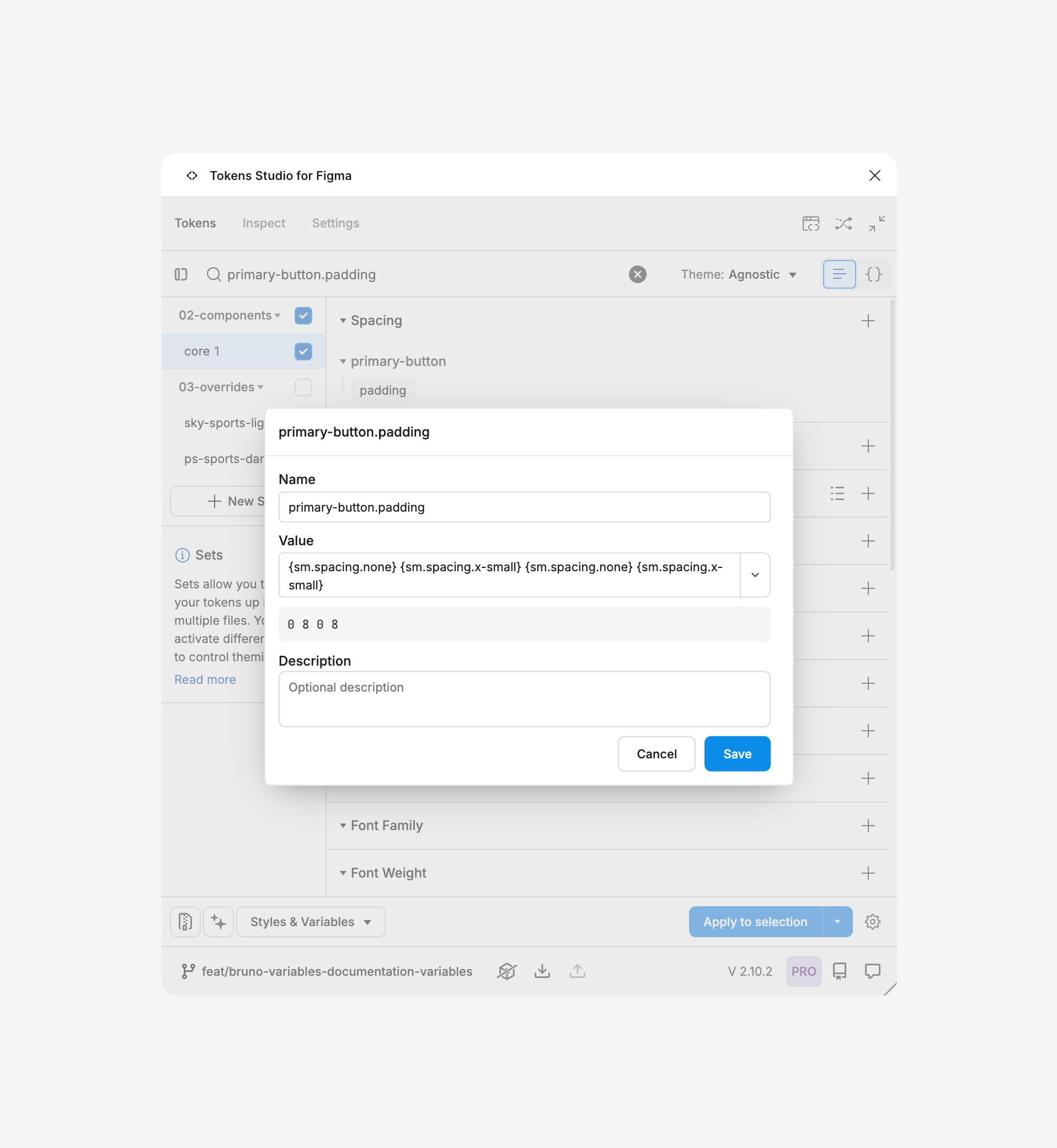
Tokens with multiple values, like margin, padding or shadows, can’t be created automatically. But we can fix this manually in Figma.
2. Create and split padding into separate directional variables
- In Figma → Open Variables panel (Right sidebar → Local variables).
- Choose the right collection for your brand or theme (e.g. 10-Brand or 40-Semantic).
- Click “+ Create variable” twice:
- Name them
primary-button/padding-horizontalandprimary-button/padding-vertical.
- Name them
- Set their type to “Number”.
- Enter the values:
Horizontal →
8Vertical →0
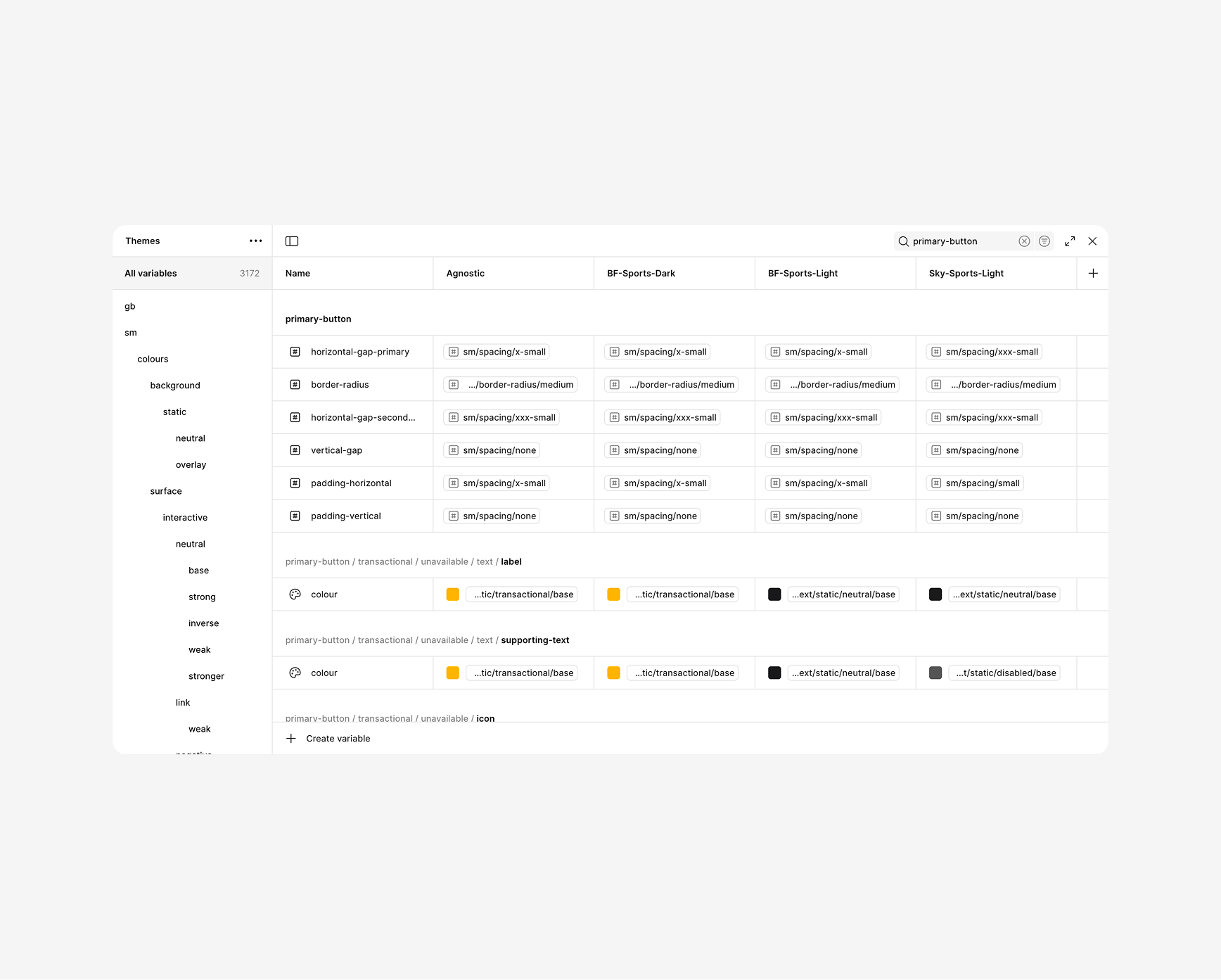
We’re splitting one composed value into two numeric variables, so each can be used for horizontal and vertical padding separately.
3. Assign Variables to the Component
- Open your PrimaryButton component in Figma.
- Select the main Auto Layout frame.
- In the right sidebar → Auto Layout section:
- Click the “Variable” icon next to Horizontal padding → pick
{primary-button/padding-horizontal}. - Do the same for Vertical padding → pick
{primary-button/padding-vertical}.
- Click the “Variable” icon next to Horizontal padding → pick
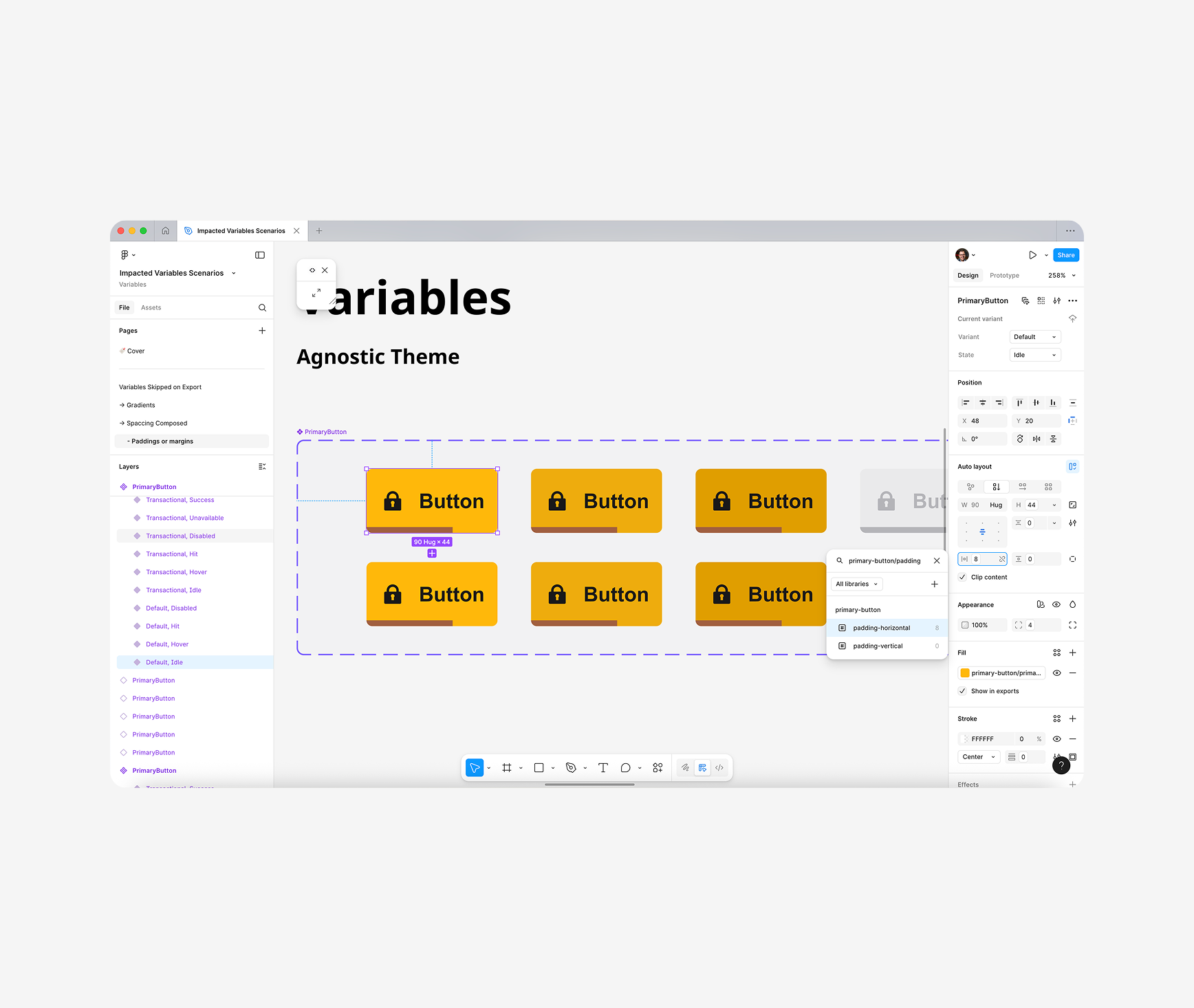
This connects the component’s layout directly to your new variables — so future brand or mode changes will flow automatically.
4. Test Modes & Brands
- Open the Variables modal.
- Switch between Light/Dark or Brand modes.
- Verify padding updates correctly if different values exist per mode and they match the overrides created on Tokens Studio.
This connects the component’s layout directly to your new variables — so future brand or mode changes will flow automatically.
Here is the full flow to resolve the issue with skipped / composed tokens when exported from TS to Figma Variables.
5. Publish & PR
- Don't forget to always publish the updated Variables library.
- Also publish the updated Component library.
- If you are already working in a branch, Open a PR with all the token changes and the new exported variables